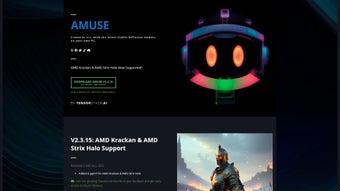

Download Amuse AI – Free AI Art Generator, Stable Diffusion, Windows
Introduction
In the fast‑evolving world of generative AI, creators are constantly searching for tools that combine cutting‑edge technology with ease of use. Amuse AI arrives at this intersection, offering a free, browser‑based platform that harnesses the power of the latest Stable Diffusion models, including the groundbreaking FLUX.1 architecture. What sets Amuse AI apart from many competitors is its commitment to accessibility: no registration, no hidden subscription fees, and instant start‑up from any modern device.
Whether you are a graphic designer drafting concept art, a social‑media manager looking for eye‑catching visuals, or simply an enthusiast curious about AI‑driven creativity, Amuse AI provides a sandbox that feels both powerful and welcoming. The platform’s intelligent hardware detection automatically allocates resources—whether GPU, CPU, or NPU—to deliver the fastest possible rendering on your machine. This means Windows users with AMD Radeon GPUs experience near‑real‑time generation, while macOS, Linux, Android, and iOS users still receive reliable results via CPU fallback.
Throughout this review, we will explore the core capabilities, walk through the step‑by‑step usage process, examine the pros and cons, and answer the most common questions. By the end, you’ll know exactly why Amuse AI deserves a spot in your creative toolkit and how to start creating stunning artwork in just a few clicks.
Overview and Key Features
Amuse AI operates entirely in the cloud, eliminating the need for bulky installations or powerful local hardware. By leveraging WebGL and modern browser APIs, the service runs efficiently on any device with an up‑to‑date browser. The platform’s core engine is built on Stable Diffusion, a latent diffusion model known for producing high‑resolution, photorealistic images from simple text prompts.
The integration of FLUX.1—a next‑generation diffusion model—adds even finer detail, richer textures, and more accurate lighting, allowing users to generate artwork that rivals professional renders. Amuse AI also supports a library of alternative diffusion models, giving artists the flexibility to choose styles ranging from painterly to hyper‑realistic. The intuitive “Amuse EZ Mode” streamlines the creation process for newcomers, while an advanced mode unlocks granular controls such as resolution scaling, style weighting, and custom filter adjustments.
Additionally, the platform offers a unique sketch‑to‑image feature: upload a hand‑drawn outline, and the AI will flesh it out into a polished illustration, preserving the original composition while adding depth and color. Continuous updates ensure that new models, performance optimizations, and bug fixes are delivered automatically, keeping the tool fresh without any manual intervention.
- FLUX.1 Integration: Leverages the newest diffusion model for ultra‑realistic textures and lighting.
- Multi‑Model Support: Access a library of Stable Diffusion variants for diverse artistic styles.
- Hardware Flexibility: Utilizes GPU, CPU, or NPU automatically, with special optimizations for AMD graphics.
- Amuse EZ Mode: One‑click generation for newcomers; no technical jargon required.
- Custom AI Filters: Apply bespoke filters to tweak color palettes, depth of field, or artistic mood.
- Web‑Based Interface: No installation hassles; launch directly from any modern browser.
- Free & No‑Signup: Completely cost‑free, with no account creation, making it instantly accessible.
- Sketch‑to‑Image: Upload hand‑drawn sketches and watch the AI flesh them out into polished artwork.
- Continuous Updates: Frequent performance improvements, model upgrades, and bug fixes.
- Export Options: Download creations in PNG, JPEG, or lossless formats for personal or commercial use.
Installation, Usage & Compatibility
Because Amuse AI is a web application, there is no traditional installation process. Users simply navigate to the official Amuse AI website, ensure their browser is up‑to‑date (Chrome, Edge, Firefox, or Safari are recommended), and click “Start Creating.” The platform performs an automatic hardware check and prompts the user to enable GPU acceleration if a compatible graphics card is detected. For Windows users, especially those with AMD Radeon GPUs, the experience is seamless: the AI leverages the Radeon Open Compute (ROCm) stack to maximize throughput. Mac, Linux, Android, and iOS users can still access the service via their browsers; the AI will fall back to CPU or NPU processing, which may be slower but still functional.
Step‑by‑step usage guide:
- Open your preferred browser and visit amuseai.example.com.
- Choose between “Text Prompt” or “Sketch Upload.”
- Enter a descriptive phrase (e.g., “surreal sunset over a neon city”) or drag‑and‑drop a hand‑drawn sketch.
- Select a diffusion model from the dropdown—FLUX.1 is recommended for highest fidelity.
- Adjust optional settings: resolution, style weight, custom filter intensity.
- Click “Generate.” The AI begins processing; progress is displayed in a real‑time bar.
- When complete, preview the image, apply additional filters if desired, then click “Download.”
- If you encounter slower performance on a CPU‑only device, consider reducing the resolution or switching to a lighter diffusion model.
- Save your project to the cloud (optional) for later edits, or share directly to social platforms via the built‑in share button.
- Repeat the process as many times as needed; there are no usage caps for free users.
Supported Operating Systems: Windows 10/11 (optimal), macOS 10.15+, Linux distributions with recent browsers, Android 8+ (Chrome), iOS 13+ (Safari). While the best performance is observed on Windows PCs with AMD hardware, the platform remains fully functional on all listed systems.
Pros, Cons & Frequently Asked Questions
Pros
- Free to use with no hidden fees or subscription walls.
- High‑quality output thanks to FLUX.1 and multiple diffusion models.
- Zero‑install, browser‑based access simplifies onboarding.
- Optimized for AMD GPUs, delivering faster rendering on many consumer PCs.
- Amuse EZ Mode lowers the barrier for beginners.
- Custom filters enable deep artistic control.
- Continuous updates keep the engine current without user effort.
- Sketch‑to‑image bridges the gap between hand‑drawn concepts and digital polish.
- Export options include lossless formats suitable for professional workflows.
- Secure, cloud‑based processing protects local hardware from heavy workloads.
Cons
- CPU‑only fallback can be slow on older or low‑power devices.
- Advanced settings may require a learning curve for power users.
- Limited offline capability; an internet connection is required.
- Some premium‑grade diffusion models are reserved for future paid tiers.
- Export options are limited to standard raster image formats (no vector output).
- Performance on macOS depends on CPU/NPU, which may be noticeably slower than AMD GPU acceleration.
- While the tool is free, commercial usage must still adhere to the platform’s acceptable‑use policy.
Frequently Asked Questions
Is Amuse AI truly free, or are there hidden costs?
Amuse AI is completely free. There are no subscription fees, no in‑app purchases, and no requirement to create an account. All features, including FLUX.1, are available without charge.
Can I use Amuse AI on a Mac with an Apple Silicon chip?
Yes. While the platform is optimized for AMD GPUs on Windows, it runs in any modern browser on macOS, including Apple Silicon. The AI will default to CPU or NPU processing, which works well though it may be slower than GPU‑accelerated rendering.
Do I need to install any drivers or software before using Amuse AI?
No additional installation is required. The web app automatically detects available hardware. If you have an AMD GPU, ensure your graphics driver is up‑to‑date for the best performance.
How does Amuse EZ Mode differ from the advanced mode?
EZ Mode simplifies the workflow to a single prompt field and a “Generate” button, hiding complex parameters. Advanced mode exposes model selection, resolution settings, filter sliders, and other controls for users who want granular control over the output.
Is my artwork owned by me, and can I use it commercially?
Yes. All images generated with Amuse AI are owned by the creator. You may use them for personal, educational, or commercial projects without attribution, provided you comply with the platform’s acceptable‑use policy.
What file formats can I export my creations in?
Amuse AI supports PNG, JPEG, and lossless WebP exports. These formats are widely compatible with design software, social media platforms, and web publishing tools.
Conclusion & Call to Action
Amuse AI stands out as a genuinely free, high‑performance AI art generator that balances simplicity with depth. Whether you are a hobbyist looking to create eye‑catching social‑media graphics or a professional designer seeking rapid concept sketches, the combination of FLUX.1, robust hardware detection, and the user‑friendly EZ Mode makes the platform a compelling addition to any creative toolkit. While CPU‑only users may notice slower render times, the overall experience remains smooth and reliable across Windows, macOS, Linux, Android, and iOS. The absence of subscription walls, combined with instant export options, gives Amuse AI a clear advantage over many paid competitors. If you’re ready to explore the future of AI‑driven illustration without spending a dime, now is the perfect moment.
Visit Amuse AI today, type a prompt, and watch the magic happen—all for free. Share your creations, join the community, and keep an eye on upcoming model updates that will push the boundaries even further. Happy creating!



.png)



